Community Training Classes & Labs > F5 CSP Big Data Training Index
Lab 2.3: Navigating AVR
Navigating and viewing AVR reports.
Task 1 – BIG-IP Performance Report
Perform the following steps to complete this task:
Navigate to Performance Report under Statistics.
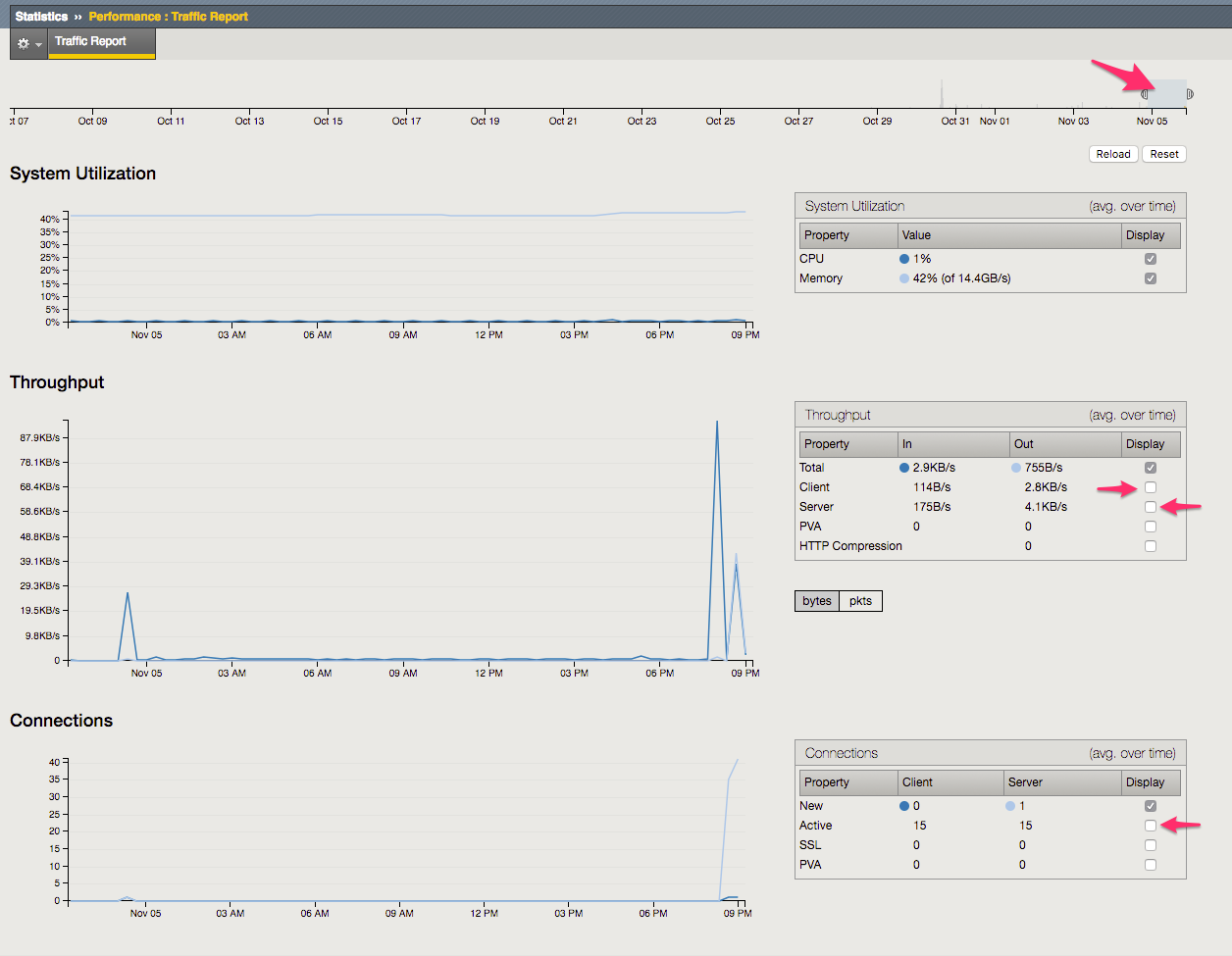
Explore the interface with the sliding bar, and tick and untick options.
Task 2 – AVR TCP Optimisation
Perform the following steps to complete this task:
Navigate to Analytics TCP Statistics.
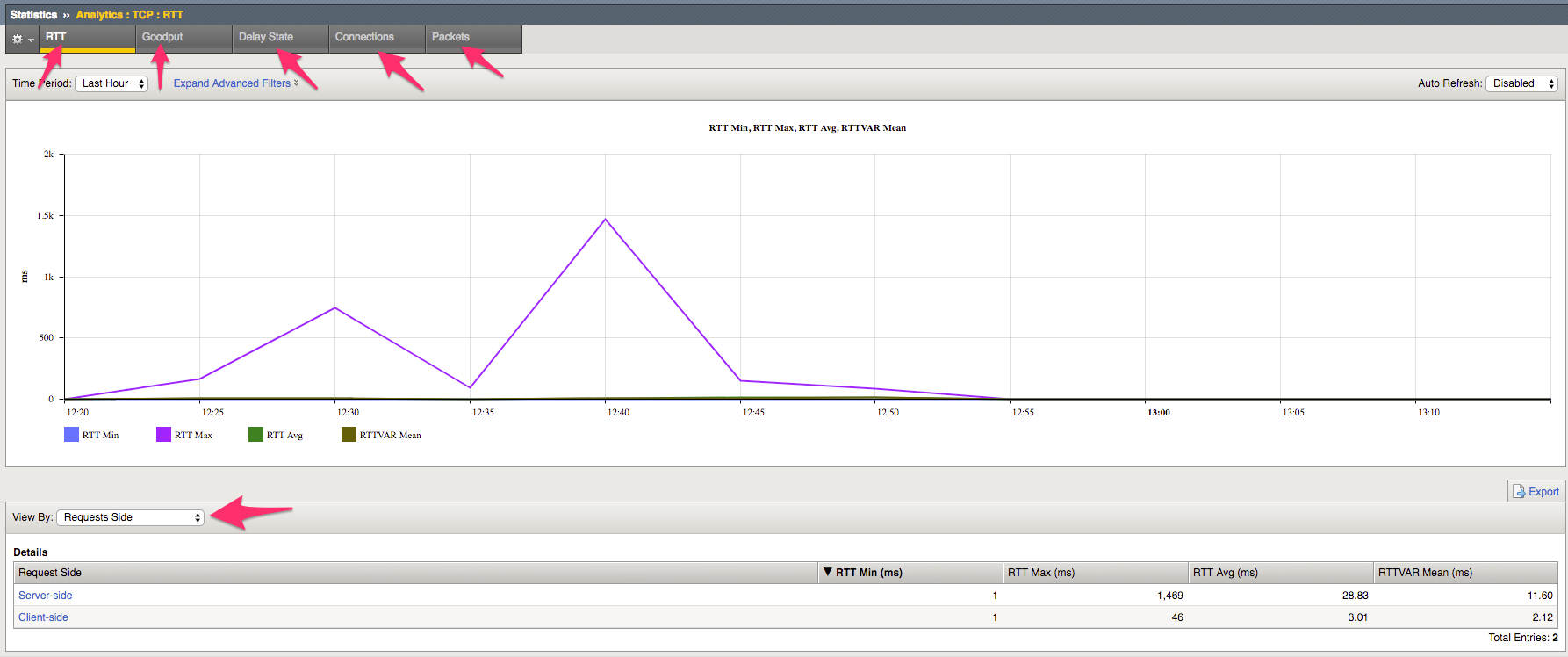
Explore the different display options by clicking around the dashboard.
See the following link for further TCP AVR information:
Task 3 – AVR Traffic Classification
Perform the following steps to complete this task:
Navigate to Traffic Classification Analytics.
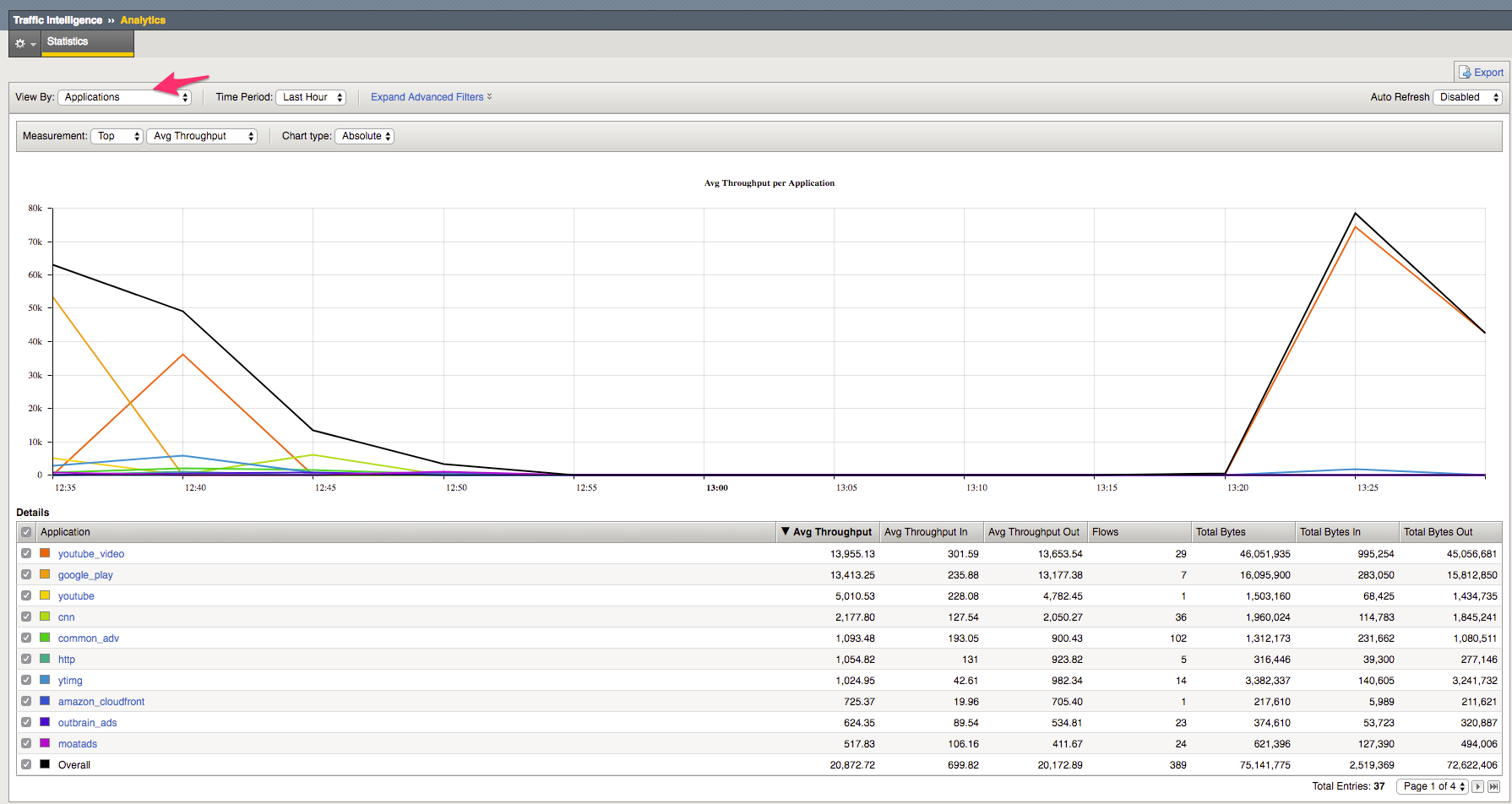
Explore the different display options by clicking around the dashboard.
Task 4 – PEM Analytics Report
Perform the following steps to complete this task:
Navigate to Policy Enforcement Analytics Overview.
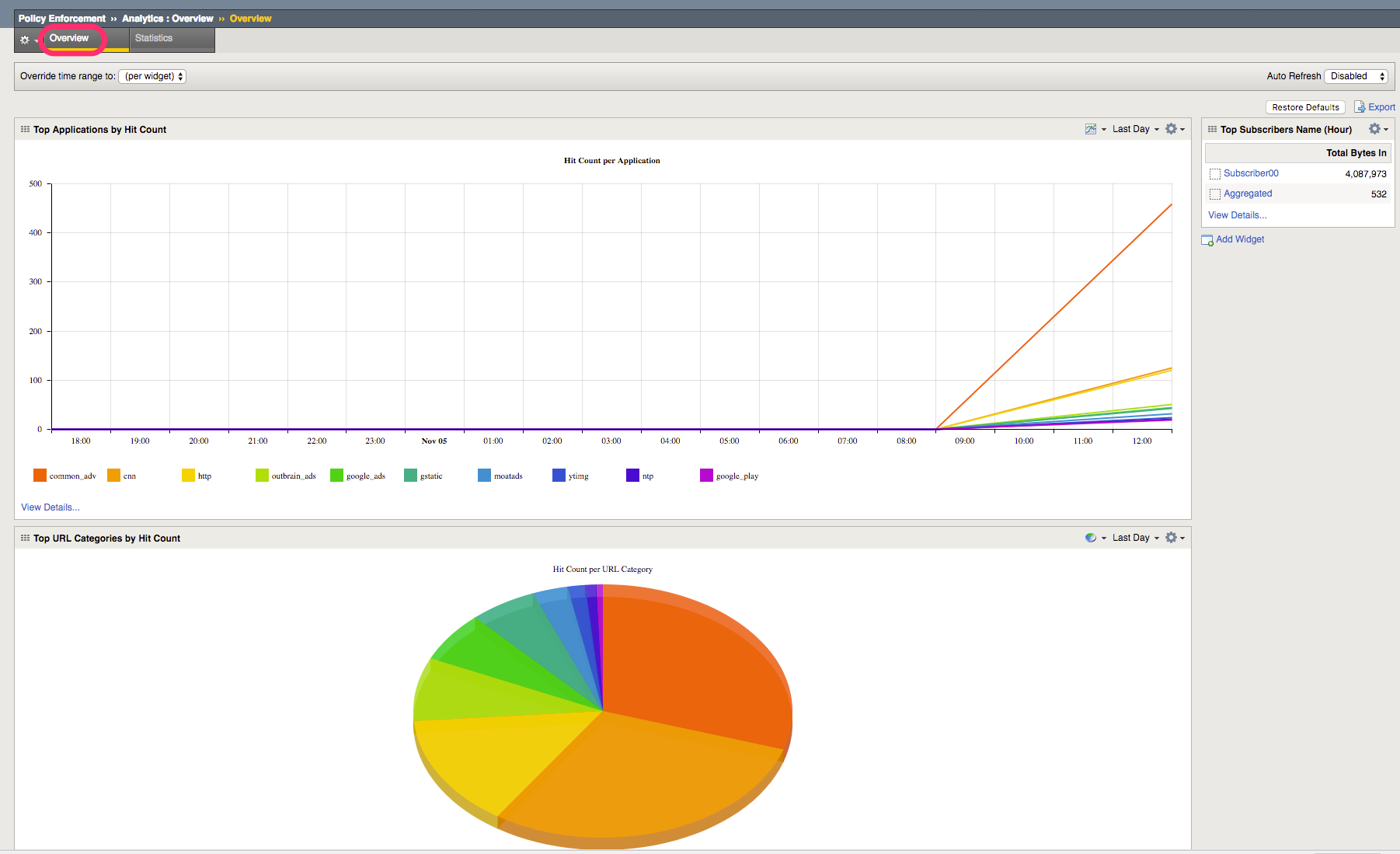
Navigate to Policy Enforcement Analytics Statistics.
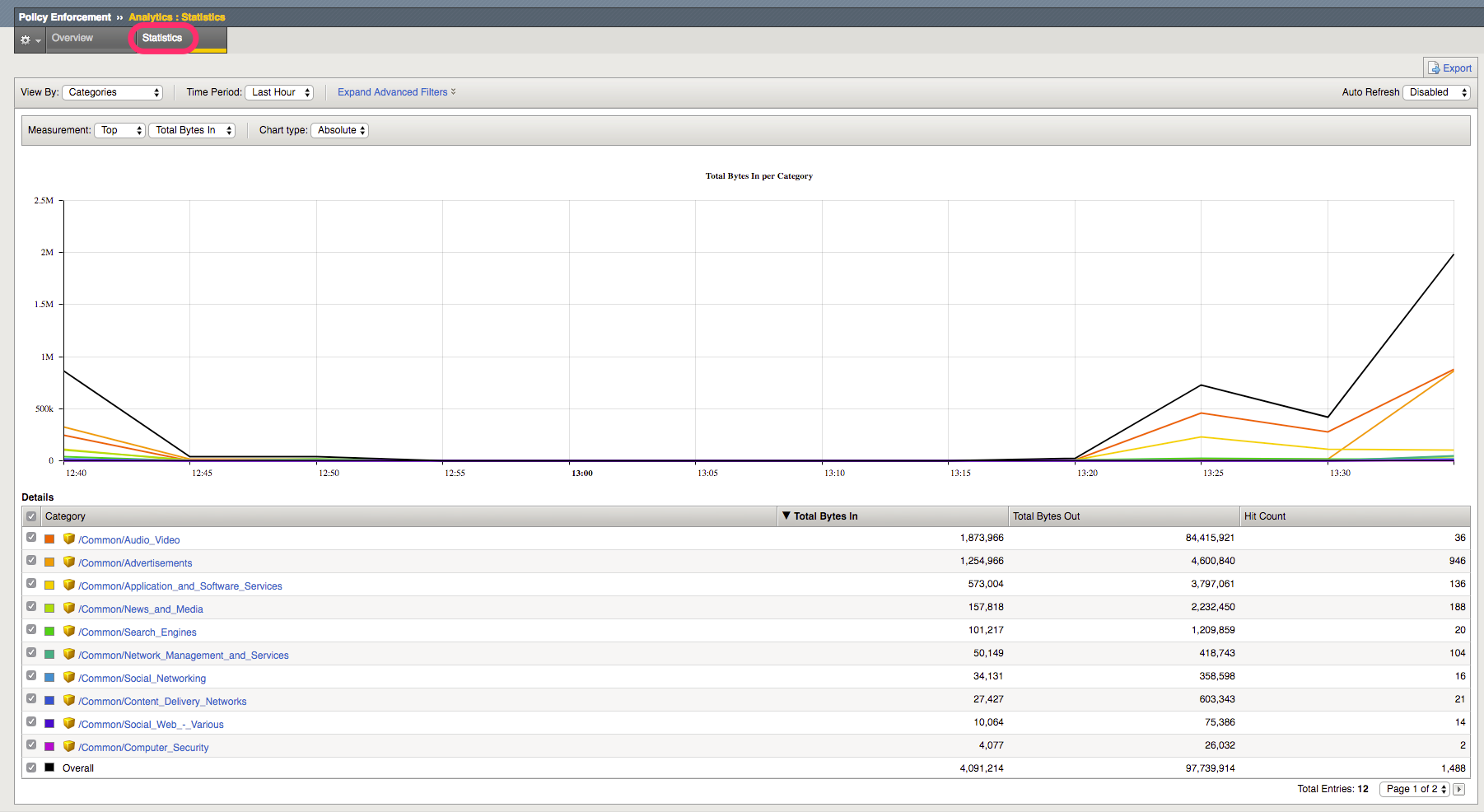
Explore the different screens and options available for display. See the following link for further AVR information:
https://support.f5.com/kb/en-us/products/big-ip-pem/manuals/product/pem-implementations-13-0-0.html
Task 5 – Modify PEM AVR Dashboard / Export AVR Report
In this task we will modify and add widgets to default dashboard, and export an Analytics dashboard to a PDF report.
Perform the following steps to complete this task:
Navigate to Policy Enforcement Analytics.
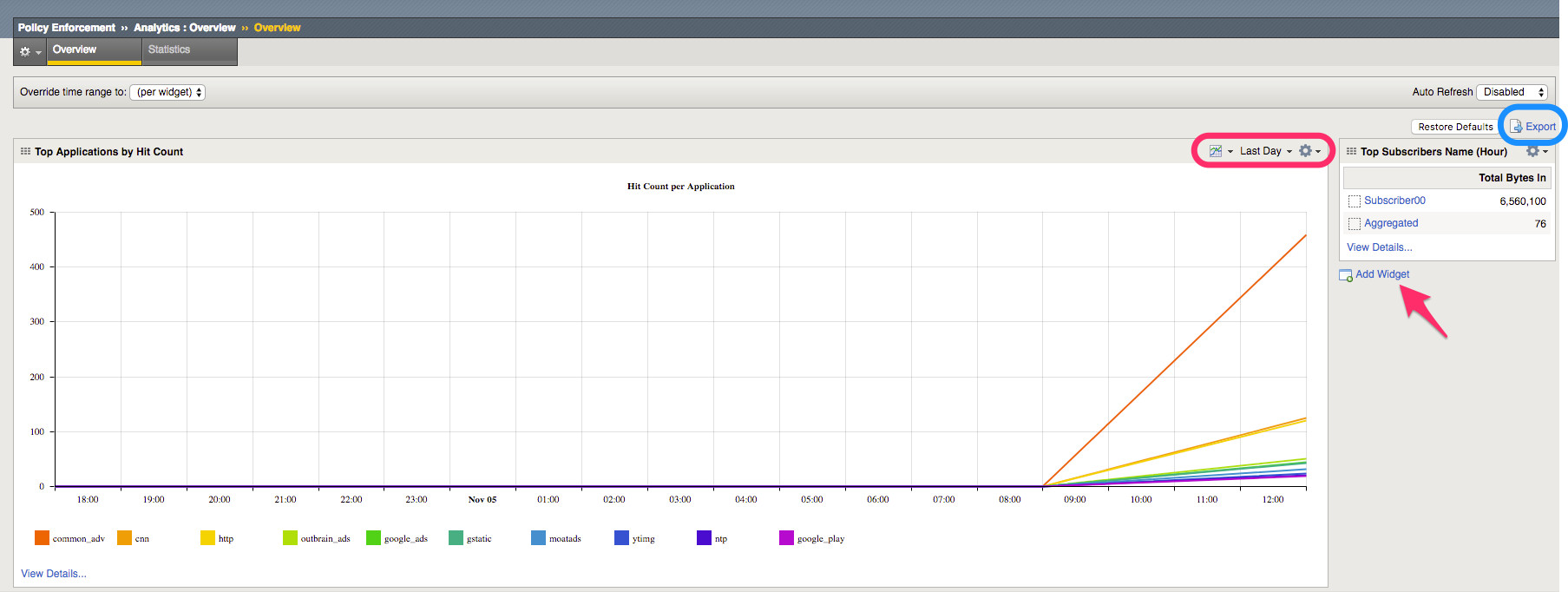
Click on Add Widget
Create a New Wdiget of your choice.
Explore the options within the Dashboard widgets for display
Click on Export, select PDF to generate report.
Task 6 - PEM Scheduled Reports
In this task we will configure a Scheduled PEM report.
Perform the following steps to complete this task:
Navigate to Policy Enforcement Analytics Scheduled Reports.

Explore the options for scheduled reporting.